Free Online Workflow
How to Add Text to Video Online Free and Make It Look Professional
If you are searching for how to add text to video online free, you probably want quick, clear text overlays that improve your video without slowing down your workflow. This guide shows the full process from upload to export, using the exact editor layout and tools you will see on screen.
What you will finish today
- Add title text, lower thirds, and callout text in one timeline
- Control exactly when each text layer appears and disappears
- Export a clean final video ready for YouTube, Reels, or TikTok
Time needed
10 to 20 minutes
Best for
Tutorials, promos, shorts
Skill level
Beginner to intermediate
Cost
Free
Step 1: Open the editor and bring in your video
Start with the result you want: a video where viewers can read key points without pausing. Open VidTL, then import your footage from the left side Media panel. Click the + Import button in the Media Library, choose your file, and drag the clip to the timeline at the bottom.
Do a quick playback check before adding text. If your clip timing looks right now, text placement will be easier later.
Quick takeaway: Import first, check timing second, then add text. That order prevents most beginner editing mistakes.
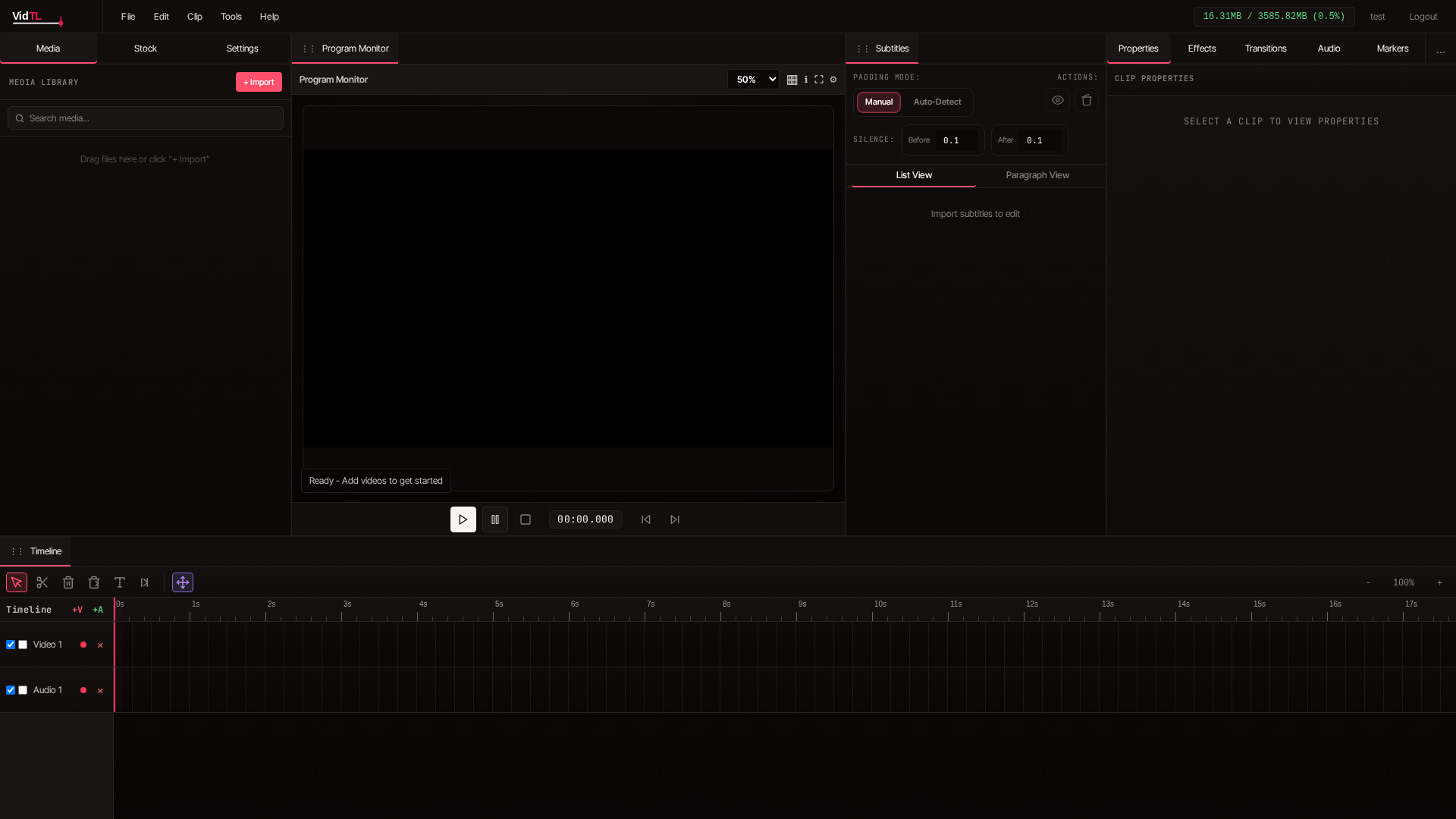
SCREENSHOT: { Editor open in default layout with top menu bar showing File, Edit, Clip, Tools, Help; left sidebar on Media tab with Media Library header and blue + Import button visible; center Program Monitor showing black canvas and playback controls under it; bottom timeline empty with tool buttons visible including Select, Cut, Delete, Ripple Delete, and Text Tool icon; right sidebar on Properties tab with "Select a clip to view properties" message }
Step 2: Add your first text layer with the Text Tool
Now for the exact action people search for when they ask how to add text to video online free. Go to the timeline toolbar and click the Text Tool button (the T icon). Then click directly on the preview canvas in the center. A text item appears and is added to the timeline as a text clip.
Title text
Use this at the beginning for topic clarity.
Lower third
Place near the bottom for names or roles.
Callout text
Use short prompts like "Watch this" or "Tip".
Keep your first line short. A good rule is 3 to 7 words for on-screen readability, especially on phones.
Quick takeaway: One clear message per text layer beats long sentences every time.
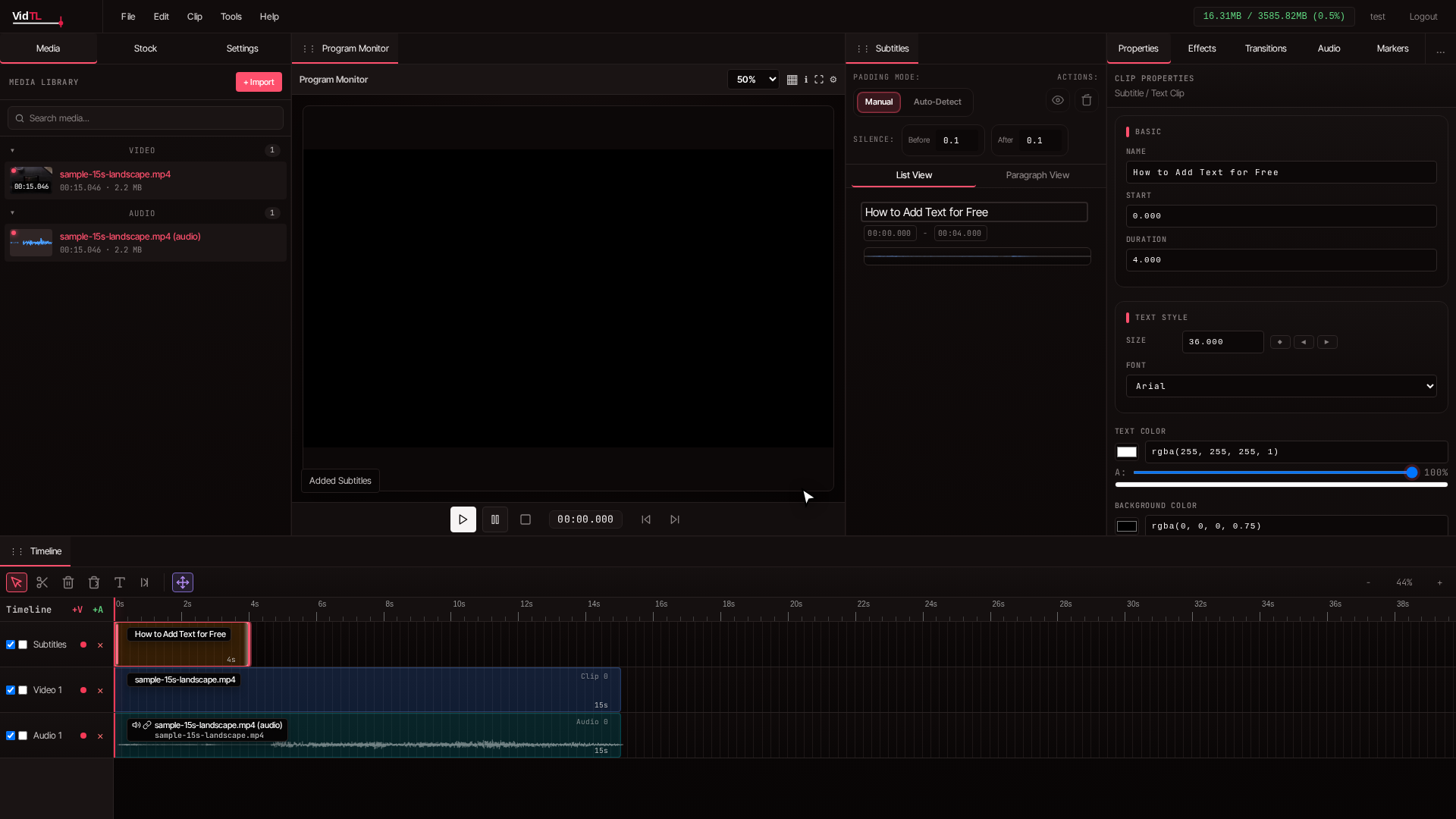
SCREENSHOT: { Timeline contains one video clip on V1 track; Text Tool button in the timeline toolbar is active/highlighted; Program Monitor shows video frame with editable text box on canvas center; a new text clip is visible on a video track in timeline (purple text clip style); playhead positioned where text should start }
Step 3: Style your text so it is easy to read
Once the text clip is selected, use the right side Properties panel to adjust how it looks. Focus on readability before decoration. Clear text gets watched longer than fancy text.
Simple style checklist that works
- Use high contrast colors against your footage
- Choose a size that can be read on a small phone screen
- Keep text inside safe areas away from frame edges
- Stick to one or two text styles for the whole video
- Use short lines to avoid crowded subtitles and overlays
Where to place text on screen
For interviews, lower thirds near the bottom usually feel natural. For educational clips, top or center text can work if it does not block key actions. Review one full playback and move any text that covers faces, products, or UI details in your video.
Quick takeaway: Readability and placement matter more than effects. If viewers can read it instantly, you are on the right track.
Step 4: Time your text perfectly on the timeline
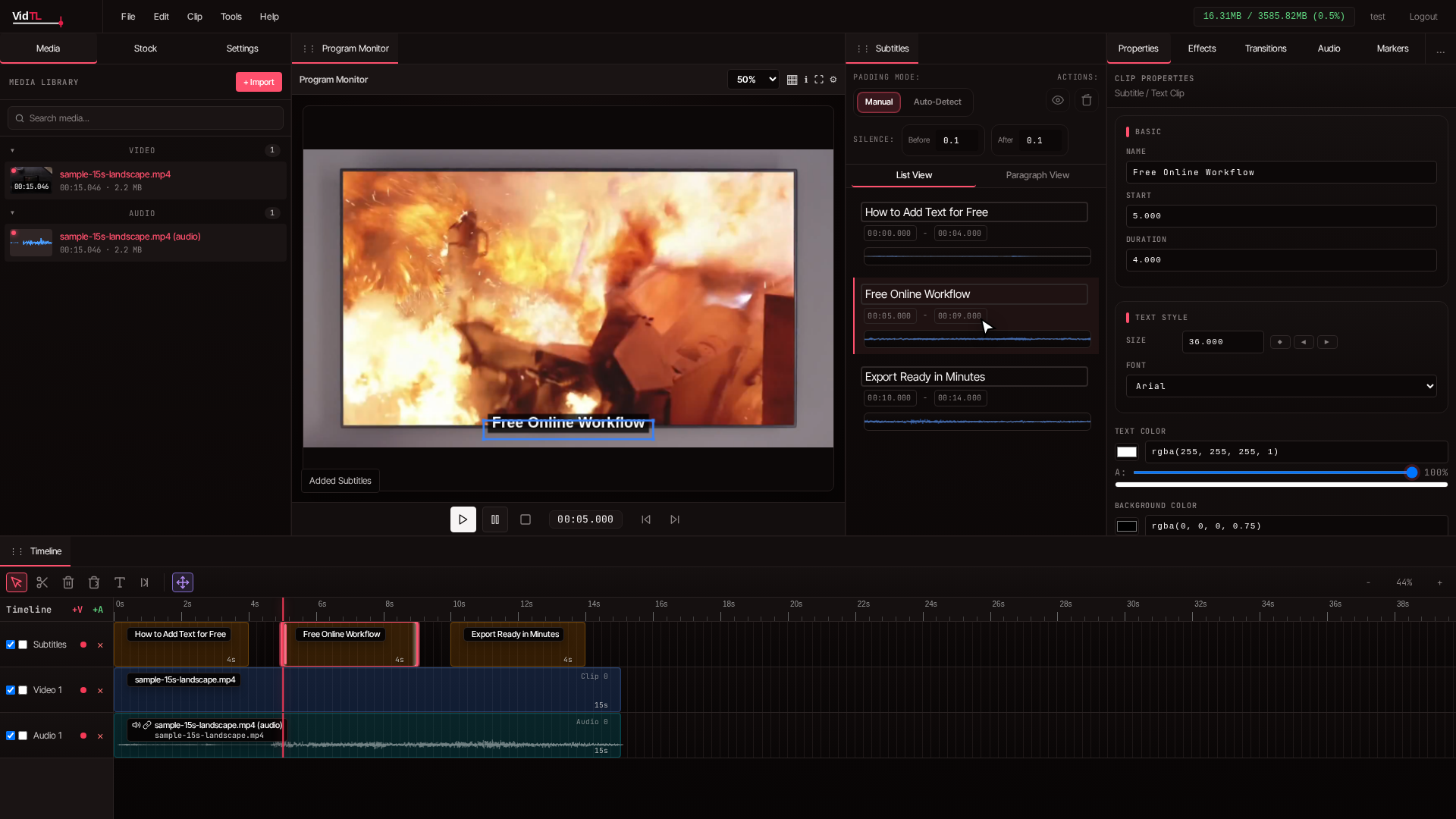
Good timing makes text feel natural. In the timeline, drag the text clip left or right to control when it starts. Trim the clip edges to control how long it stays on screen. Use the playhead and transport controls under the Program Monitor to check exact timing.
| Goal | What to do in VidTL | Why it helps |
|---|---|---|
| Start text at spoken keyword | Move playhead to keyword and align text clip start | Viewers connect voice and text instantly |
| Remove text quickly | Trim text clip end to shorter duration | Keeps screen cleaner and less distracting |
| Fix late text | Drag text clip slightly earlier on timeline | Improves comprehension and pacing |
SCREENSHOT: { Timeline zoomed to show precise clip timing; one video clip on main track and multiple text clips on text track; selected text clip has visible trim handles; playhead aligned near text clip start; time ruler and zoom controls visible; Program Monitor displays frame where text appears exactly as spoken }
Quick takeaway: Each text clip should appear right before or exactly when the related idea is spoken.
Step 5: Add movement only where it helps
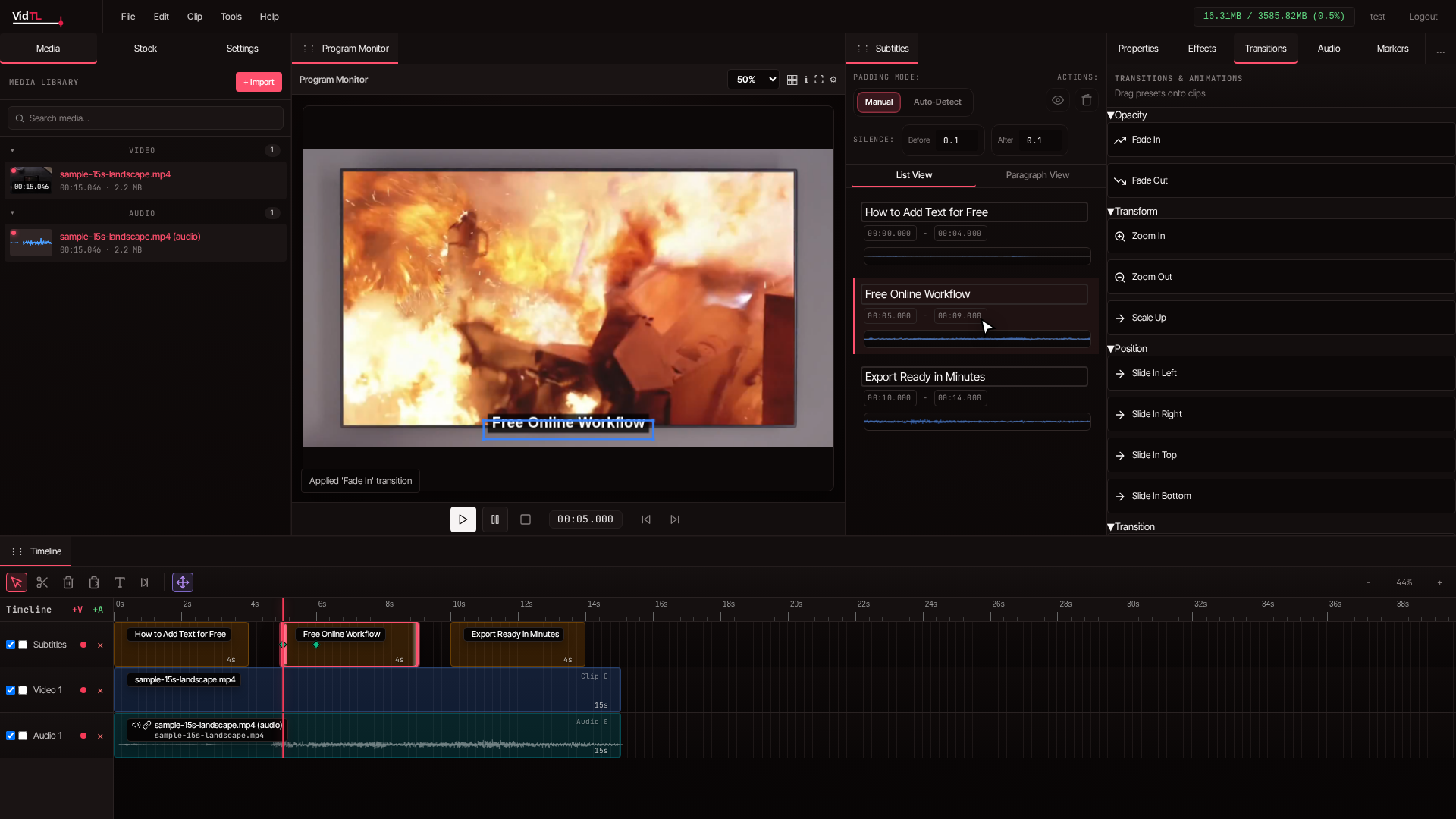
You can open the right Transitions panel to add simple motion presets. Use motion to guide attention, not to decorate every line. For most videos, subtle in and out movement on key text is enough.
Good use of motion
- Intro title appears once
- Callout text for an important moment
- Final call to action at the end
When to skip motion
- Fast talking-head edits
- Dense tutorial steps
- Videos where readability is top priority
SCREENSHOT: { Right sidebar switched to Transitions tab with "Transitions & Animations" title visible and preset list displayed; selected text clip highlighted on timeline; user dragging one transition preset toward text clip; Program Monitor shows current frame with text overlay in place }
Quick takeaway: Use animation as punctuation. One clear motion can do more than five flashy ones.
Step 6: Export your text video in the right format
When text timing and placement look good, export from the top menu under File and choose Export Video. In the export dialog, set file name, format, and resolution based on where you will publish.
Practical export picks
- YouTube: MP4 at 1920x1080 is a reliable default
- Reels and TikTok: Vertical 1080x1920 if your source is vertical
- Fast sharing: Lower quality slightly for smaller file size
SCREENSHOT: { Export Video dialog open centered over editor with Basic tab active; fields visible for File Name, Format, Resolution, Quality slider, and Audio Channels; Export and Cancel buttons visible in footer; underlying editor dimmed in background showing timeline with text clips }
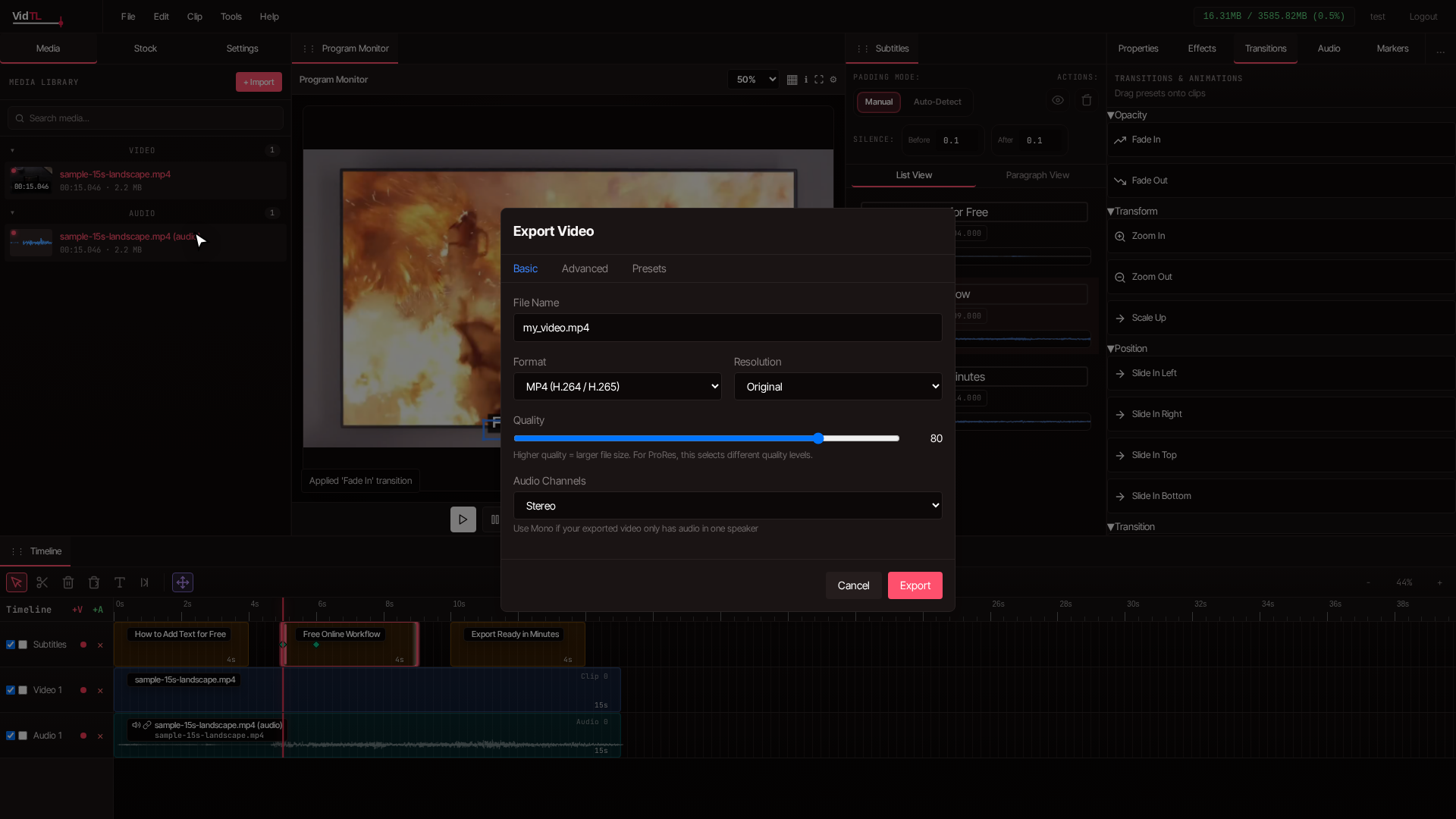
Quick takeaway: Always watch the exported file once before posting. Check text readability on your phone, not only on desktop.
Real workflow tips from daily editing
If you regularly make short-form content, these habits save time and keep your text looking consistent across projects.
Keep a repeatable text system
Use one style for headings, one style for lower thirds, and one style for calls to action. Consistency helps viewers trust your content.
Write for glance reading
People read on-screen text quickly. Use plain words and trim extra filler words before you place text on the timeline.
Check contrast scene by scene
A color that works in one shot may fail in another. Scrub through bright and dark frames before final export.
Trim text aggressively
Most lines can be cut by 20 percent without losing meaning. Short text feels cleaner and is easier to read.
FAQ: How to add text to video online free
1. How can I add text to video online free without downloading software?
Open the web editor, import your video, click the Text Tool, place text on the preview canvas, and adjust timing in the timeline. You can complete the full process in your browser and export directly when finished.
2. What is the best text length for social media videos?
For most social posts, keep each line between 3 and 9 words. This range is fast to read and less likely to cover important video details on smaller screens.
3. Why does my text look good on desktop but hard to read on phone?
Desktop previews can hide readability issues. Increase text size slightly, raise contrast, and leave more margin from screen edges. Then test the export on your phone before publishing.
4. Should I add text to every second of my video?
Usually no. Use text where it clarifies a key point, introduces a section, or drives action. Too much text can tire viewers and distract from your visuals.
5. Can I combine manual text overlays with subtitles?
Yes. Many creators use subtitles for dialogue and separate text overlays for headlines, names, or calls to action. This mix gives structure and keeps messaging clear.
Conclusion
Now you have a practical system for how to add text to video online free: import your clip, place text with the Text Tool, style for readability, time each line in the timeline, and export with the right settings. If you keep lines short and focus on clear placement, your videos will look more polished and easier to follow from the first edit session.
The fastest improvement is simple: open your latest video, add one clean title, one helpful lower third, and one call to action. That small update can make your next upload feel instantly more professional.