How to Adjust Video Brightness Online Free (Step by Step)

If your footage looks too dark, flat, or hard to see, this guide shows exactly how to adjust video brightness online free with VidTL. You will learn where to click, how far to move brightness controls, and how to avoid making skin tones or backgrounds look washed out.

No download required Works in browser Great for dark clips

Brightness Checklist

  • Watch faces first, then backgrounds
  • Check white areas for detail loss
  • Stop before skin looks pale or gray
  • Balance with slight contrast increase
  • Preview full clip before export

Fast Recap

  • Import clip and select on timeline
  • Open Effects panel, apply Color Correction
  • Increase brightness in small increments
  • Add contrast to restore depth
  • Preview and export as MP4

What You Will Improve by Adjusting Brightness

Brightness is one of the fastest fixes you can make when footage is underexposed or just looks dull after upload. A good adjustment helps viewers see faces, details, and movement without forcing them to squint or increase screen brightness. It also makes your video feel cleaner and more professional right away.

In real editing sessions, most dark clips need two things: a brightness lift and a small contrast adjustment. Raising brightness alone can make the image look hazy. Pairing brightness with gentle contrast keeps depth in the shot while still revealing details in shadows.

When to increase brightness

  • Indoor clips with weak lighting
  • Backlit talking head videos
  • Phone footage shot at night
  • Screen recordings that look dim

When to stop increasing

  • Skin starts looking pale or gray
  • White areas lose detail
  • Image starts looking flat
  • Noise becomes distracting

Action takeaway: Raise brightness slowly, watch faces and highlights, then balance with a little contrast.

Step by Step: How to Adjust Video Brightness Online Free in VidTL

Follow these steps in order.

1) Open the editor and import your clip

Start by opening VidTL and clicking the + Import button in the left Media panel. Once your file appears in the media library, drag it down to the timeline. If your clip has audio, it may appear on video and audio tracks, which is normal.
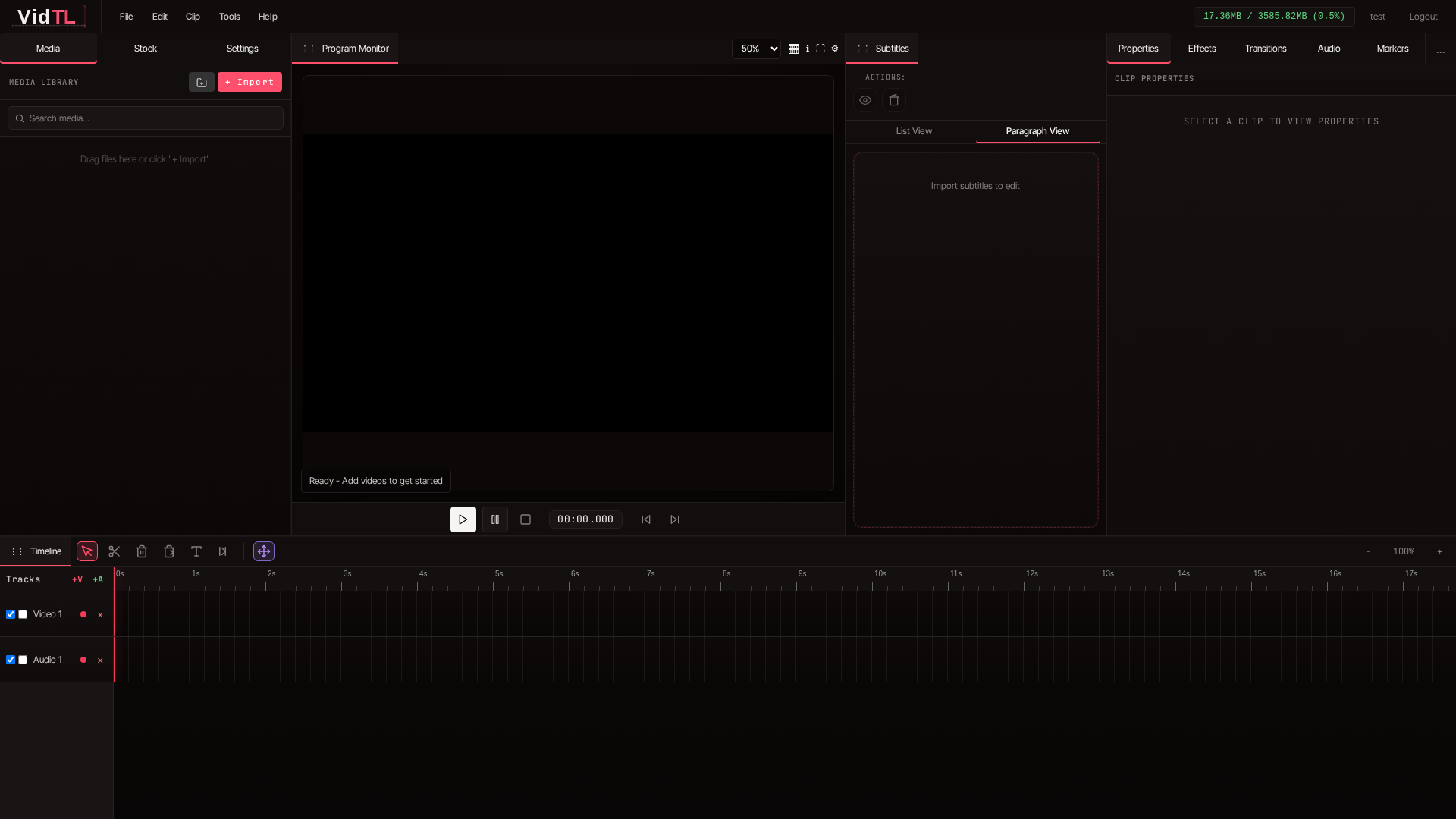
VidTL editor open with Media panel, import button, timeline, and properties sidebar visible before adding video

2) Select the clip on the timeline

Click the video clip in your timeline once. A selected clip is the one that receives your effect adjustments. If nothing seems to change later, the usual cause is that the clip was not selected before adjusting settings.
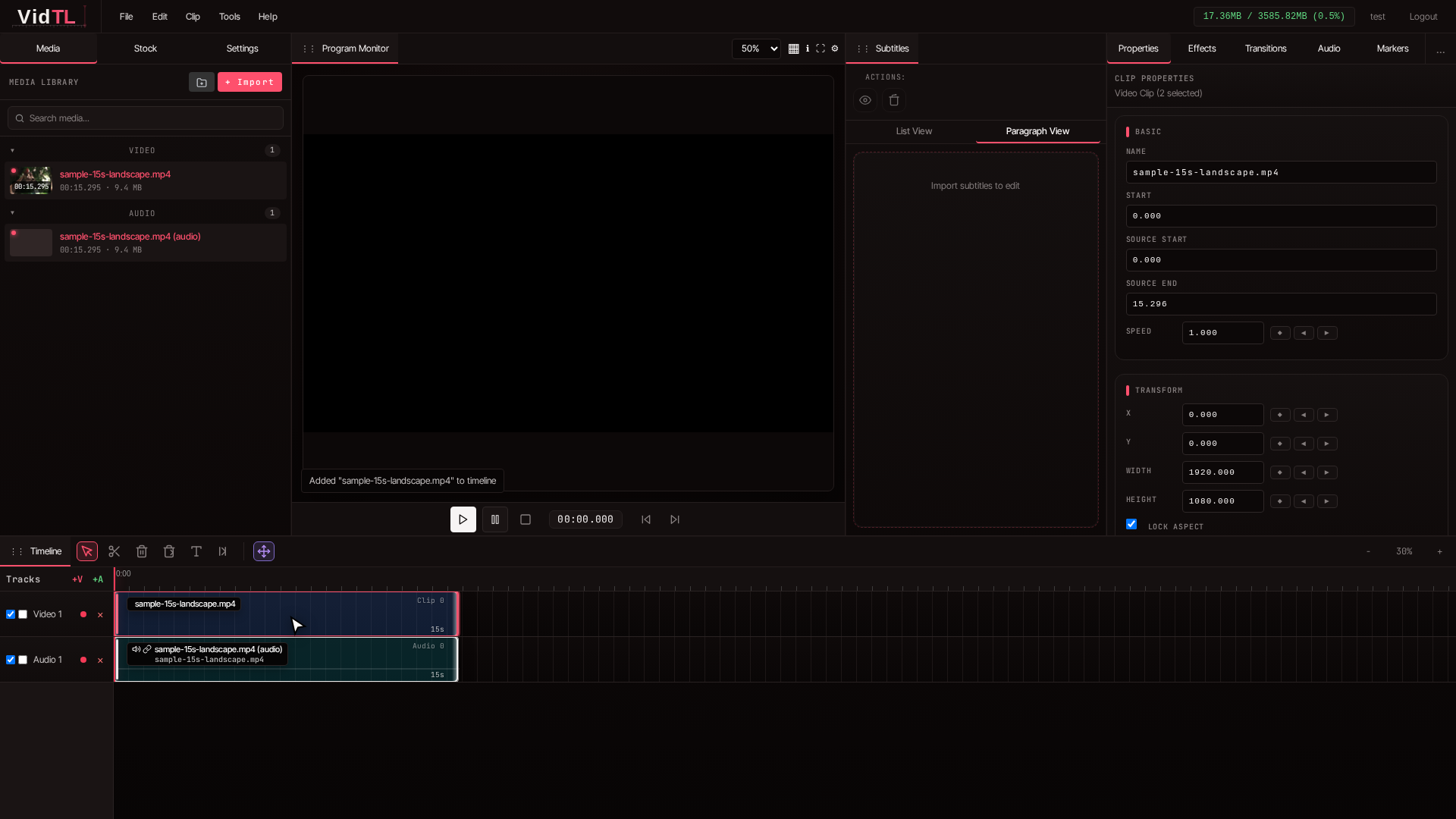
Timeline clip selected in VidTL before adjusting brightness

3) Open the Effects panel on the right side

On the right sidebar, click Effects. This is where visual adjustments are controlled for the selected clip. Click and drag the "Color Correction" effect to your clip on the timeline. Keep your Program Monitor visible in the center so you can judge changes in real time while moving sliders.
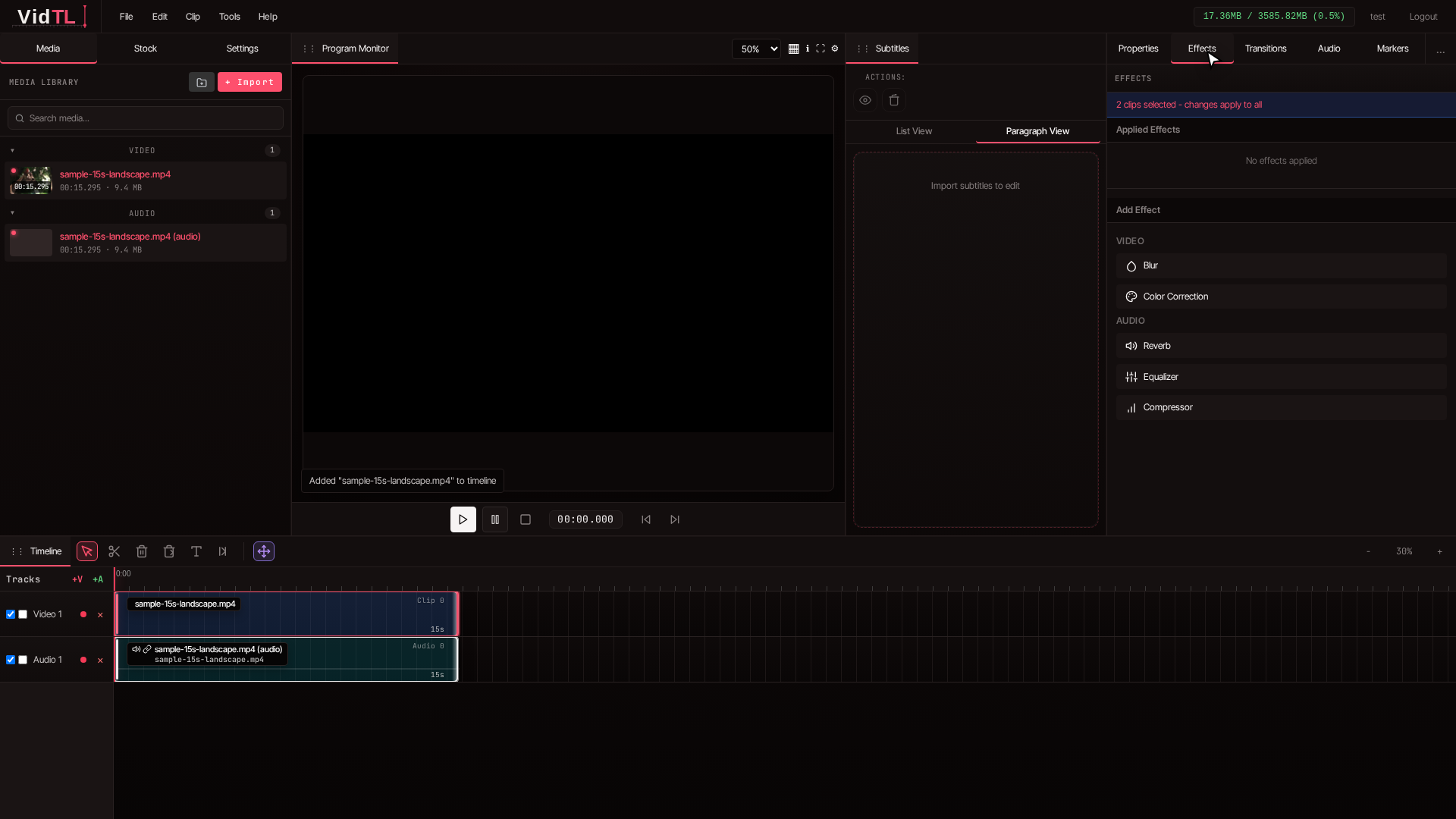
Effects panel opened in right sidebar ready for brightness adjustment

4) Increase brightness in small increments

Move the brightness control a little at a time, then pause and look at the preview. Good practice is short adjustments followed by quick checks. This keeps the image natural and prevents accidental over-editing.

  • Start with a modest increase.
  • Watch faces first, then backgrounds.
  • Check white areas like walls, shirts, or sky.
  • If everything looks faded, pull brightness back slightly.
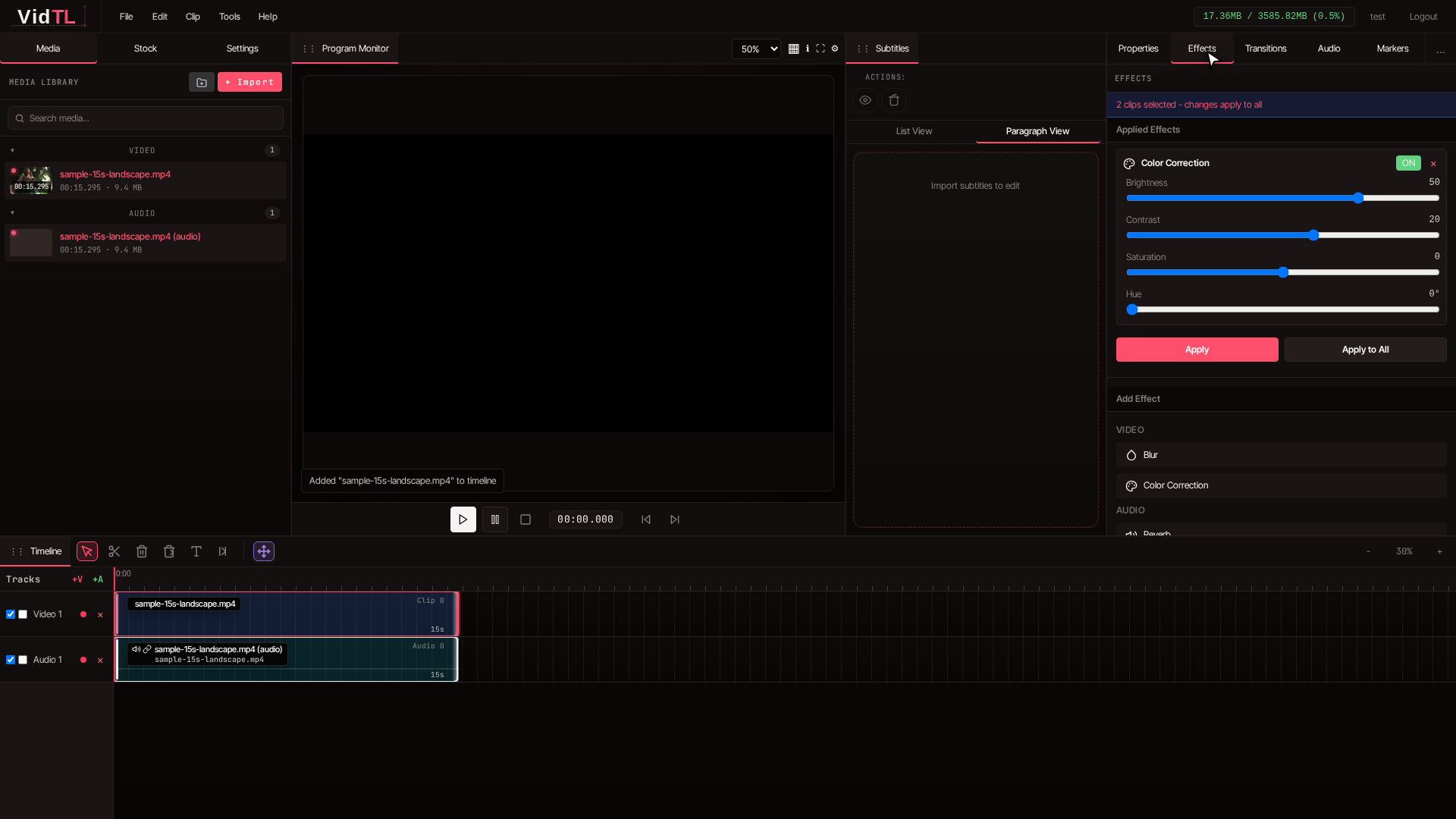
Brightness slider adjusted slightly with live preview in Program Monitor

5) Balance with contrast so the image does not look washed out

After brightening, add a small contrast tweak to restore depth. In many clips, brightness alone lightens shadows but softens overall definition. A gentle contrast increase brings shape back into faces, clothing, and objects.

If you are editing talking head content, zoom your attention in this order: eyes, skin tone, then background. If eyes become too flat or skin loses tone, reduce either brightness or contrast by a tiny amount and preview again.

Action takeaway: Think in pairs, brightness to reveal detail, contrast to keep depth.

6) Preview from beginning to end before export

A setting that looks good in one frame may be too strong in another scene. Play through your clip in the Program Monitor and watch transitions between darker and brighter moments. Make micro-adjustments until the whole clip feels consistent.
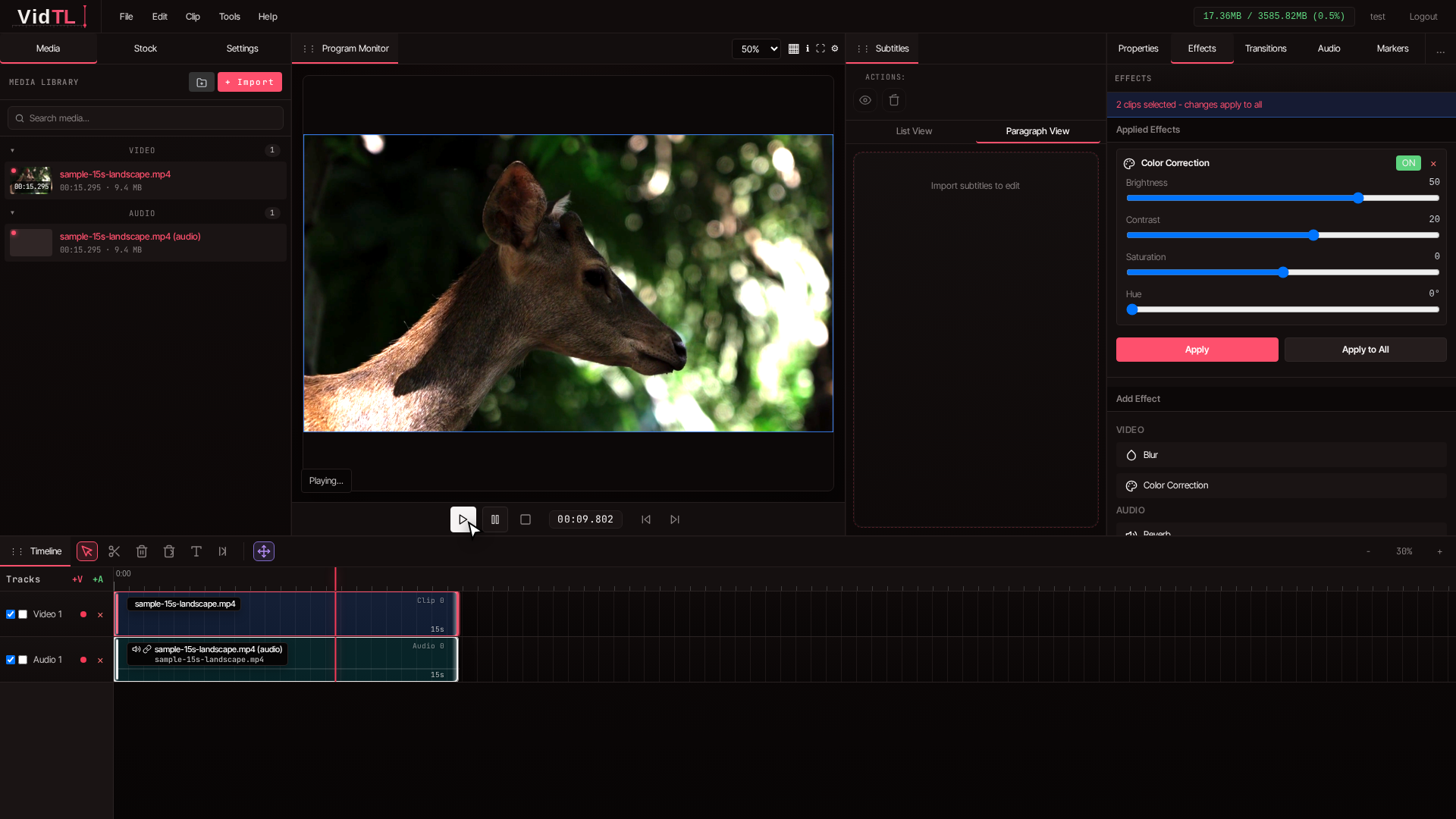
Final brightness and contrast check across full timeline before export

7) Export your final video

When everything looks right, export your video. Keep filename, format, and resolution aligned with where the video will be published. For most creators, MP4 at the target platform resolution is a practical default.
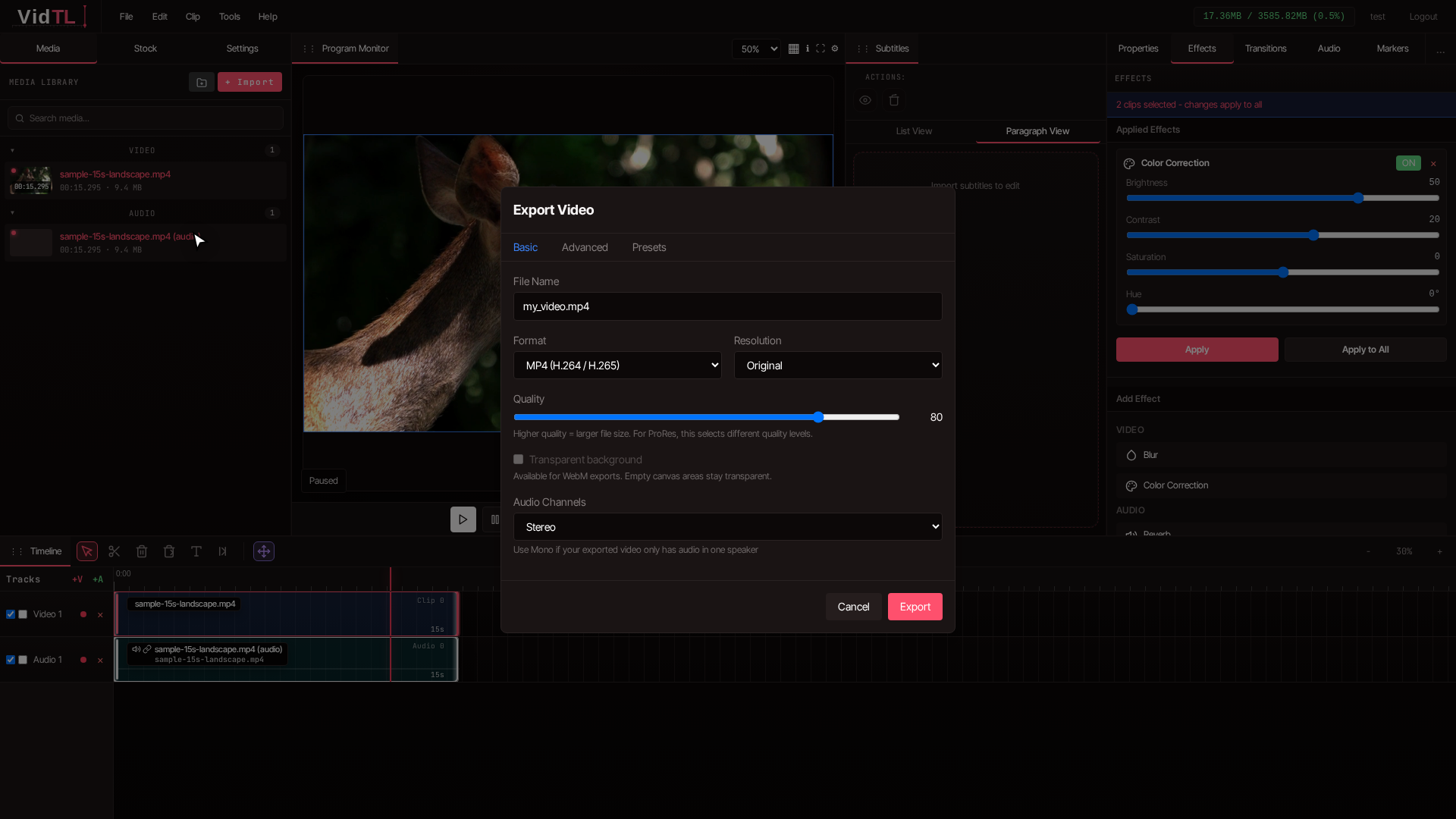
Export settings modal in VidTL after brightness adjustment is complete

Action takeaway: Always preview the full clip before export so your brightness correction stays consistent scene to scene.

Recommended Brightness Workflow for Different Clip Types

Different footage needs different handling. The table below helps you make faster decisions without guessing. These are practical starting points, then you refine by eye in preview.

Clip Type Brightness Move Contrast Move What to Watch
Indoor vlog Low to medium increase Small increase Skin tone and wall highlights
Night street footage Small increase Very small increase Noise in shadows
Backlit interview Medium increase Small to medium increase Face detail versus window clipping
Screen recording Small increase Small decrease or neutral Text readability and UI detail

If your clip still feels uneven after brightness correction, split long clips and tune each section separately. Lighting often changes during a recording, especially in moving shots or long talking segments.

Action takeaway: Use the table as a starting point, then adjust to your specific scene.

Common Brightness Mistakes and Quick Fixes

Mistake: Raising brightness too much

Video starts looking foggy, white, or lifeless.

Fix: Reduce brightness slightly and add a small contrast increase.

Mistake: Editing while paused on only one frame

Later scenes look too bright or too dark.

Fix: Preview multiple points in the timeline before exporting.

Mistake: Ignoring faces

Background looks good but people look flat.

Fix: Prioritize skin tone and eye detail first.

Mistake: Applying one setting to mixed lighting

Some parts are perfect, others overexposed.

Fix: Split clips by scene and adjust separately.

These fixes are simple, but they save a lot of rework. Most creators get better results by making three tiny adjustments than one large one.

FAQ: Adjusting Video Brightness Online for Free

1) Can I adjust video brightness online free without installing software?

Yes. VidTL runs in your browser, so you can import, edit brightness, preview, and export from one place. You do not need desktop editing software just to fix dark footage.

2) Why does my video look washed out after increasing brightness?

That usually means brightness is too high for the clip. Pull brightness back a little and add a mild contrast increase. The goal is brighter detail with natural depth, not a flat image.

3) How do I make a dark video brighter without ruining quality?

Use small increments and preview often. Focus on faces and highlight detail as your quality checkpoint. Extreme boosts can reveal noise, so increase in stages and stop when detail looks clear.

4) What export settings should I use after brightness correction?

For most use cases, MP4 with your target resolution is a reliable choice. Keep quality reasonably high for cleaner gradients in bright areas, then test playback on phone and desktop before publishing.

Conclusion

If your main goal is to make dark footage easier to watch, learning how to adjust video brightness online for free is one of the highest impact editing skills you can pick up. With VidTL, the process is straightforward: import, select clip, open effects, add color correction effect to your clip, nudge brightness, balance with contrast, preview, and export.

The key is restraint. Small controlled moves create a polished result that still looks natural. Once you get used to this workflow, you can fix dim clips in minutes and keep your videos clear, professional, and ready to publish.